Samsung Kies, a free application which gives you full control over the content stored on Samsung. It allows you connect your Samsung devices to your computer, as well as backup and restore files on Samsung. Well, Samsung Kies can do far more than that, read on this article to learn the detailed information about Samsung galaxy Kies.
Connect Samsung Device to Computer Wirelessly
Using a compatible USB cable to make the connection is kind of troublesome for some people, especially when they encountered USB driver issues. Fortunately, Samsung Kies can help you get around this. With it, you can wirelessly connect Samsung to your computer with Wi-Fi connection. But, you should note that some functions of the Samsung will be limited and not all Samsung devices are supported.

Backup & Restore All Data from Your Samsung
With Samsung Kies, you can create backup of content on your device and restore your Samsung data easily and quickly. It supports backing up and restore various files from your device, including contacts, S note, messages, call logs, S health, S planner(calendar events), videos, musics, photos, ringtone, album, apps, alarm, email account info and more documents stored on Samsung internal memory. Thus, you needn’t to worry about the data loss. If you don’t have Kies backups, Yolisoft Android data recovery tool is a good alternative to recover data from Samsung.
Sync Contacts with Outlook, Google or Yahoo
Samsung Kies offers the easiest way to import email contacts onto your Samsung device and back them up. The supported email applications including Outlook, Gmail, and Yahoo. Besides, it can add as well as edit contacts directly in Kies.
Transfer & Manage Photos, Videos, Musics on Computer
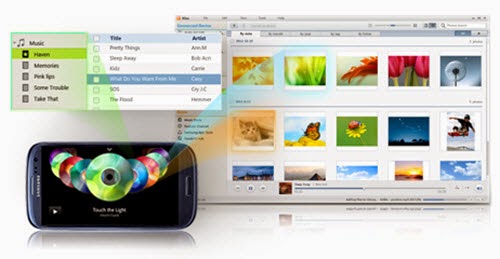
Kies can help you effortlessly manage your Samsung musics, photos, and videos and other multimedia content on your computer. You can simply connect your Samsung to any wireless network and let Kies to Sync the photos, videos, musics. In addition, you can even create playlists in Kies and the playlists can be transferred between different devices and platforms including iTunes.
Samsung Kies Versions:
Samsung Kies is available for both PC and Mac computer. For Mac users, Kies 3 is the only choice. For Windows users, you should first decide the version of Android running on your Samsung device. Kies 3 is compatible with devices running Android 4.3. If your Samsung is running older version of Android, Kies 2.6 is the right one.
Tips & Tricks:
- If you want to get the full functions of Samsung Kies, make sure it is the latest version and download it on Samsung official website.
- For windows users who connecting Kies to PC via USB cable, you should have Samsung driver installed, so that the Samsung device can be detected.
- If you encountered issues when installing the Kies, you can try Samsung Manager to manage data on your Samsung.
Related Articles:
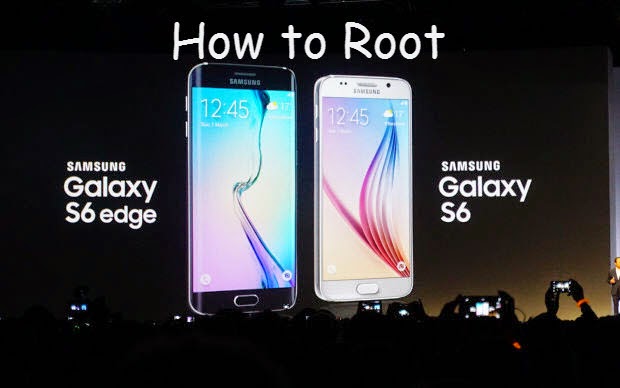
If you want to truly clean up your curvy new Samsung Galaxy S6/S6 edge, you might need to root your S6/S6 edge with the normal android rooting tools. So that you can gain administrative rights on your device, and thoroughly remove the bloatware from your phone, which is also a great way to free up the RAM and storage memory. The advantages of rooting Samsung S6/S6 edge are far more than that. If a custom recovery exists for your Samsung, you can even flash newer versions of Android, remove TouchWiz entirely, and more.
It is possible to Root Galaxy S6/S6 Edge
With Samsung’s in-house
Exynos processor and Knox protection, rooting s6 is not that easy at the
beginning. Though, it’s been possible to root Samsung S6 and galaxy s6
edge since they are available a month ago. The first method to root
Samsung S6 would trip Samsung’s flash counter and let’s the technicians
check if the phone has been modified. In the other words, your warranty
would be voided. Fortunately, Pingpong Root will let you root Samsung
galaxy S6 and galaxy S6 edge without tripping KNOX.
About Pingpong Root
PingPong Root is developed by a XDA Member idler1984 who are working at a professional Chinese team named Keen Team. The new method to root Samsung s6/S6 edge doesn’t require Odin to flash a custom recovery and will not trip KNOX warranty bit. This tool is in the initial beta phase, but supports a broad variety of ROM variants. According to the XDA thread, they have 50+ ROM versions supported. The process is fairly straightforward, requiring you to download a single app and click a button in it, following which, the tool proceeds to complete the process automatically.

Steps to Root Samsung Galaxy S6/S6 edge
1. Uninstall Kinguser(optional). If you have Kinguser installed before, open it and navigate to “Settings” -> “Root authorization setting” -> “Remove Root permission”. Click to remove root permission and unintall Kinguser.
2. Download PingPong root<ver>.apk on XDA thread. Install & open it.
3. It will automatically install SuperSU 2.46 for you. Follow the wizard on screen.
4. Once the installation finished, click “Open" and run it once to "activate" it. It will prompt an error message (unless you already rooted) and exit automatically, bring you back to PingPong root.
5. Tap "Download Data" button to update device data if you have wi-fi connection.
6. Open it and click "Get Root!" button
7. You will get the prompted messages app permissions, allow them and continue. If it reboots, just retry.
8. Once finished, reboot your Samsung S6/S6 edge.
Notes:
1.Backup anything you are worried about losing before rooting your S6/S6 edge.
2.Disable the secure features: Samsung KNOX and Samsung Pay.
3.If it cannot support your ROM, you can follow the XAD thread to wait the newest version.
4.You can uninstall PingPong root app once the rooting process finished.
Related Articles:
You may have received your new Samsung Galaxy S6/S6 edge already. Cannot wait to feel the Samsung flagship? Before you get the great smartphone, you must have read info about Samsung Galaxy S6( if not, you can check the article “Samsung Galaxy S6 is Coming, Are You Ready? ”I guess you have noticed its unique feature that the phone will light up when messages and calls received. Well, that’s the main topic we are gonna to discuss today.
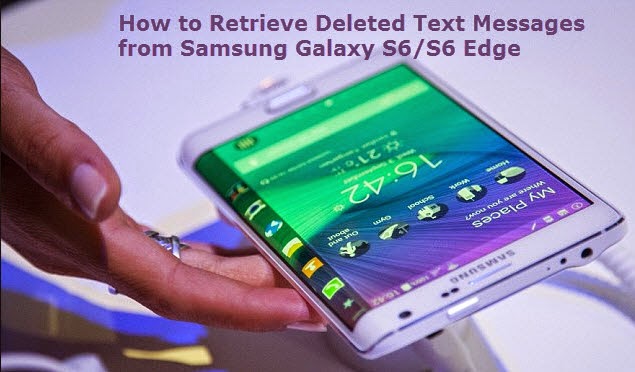
Many Samsung users have encountered the problem of deleting important text messages accidentally, and most of them don’t have available backup messages. The Samsung Galaxy S6/S6 edge users are no exception. Thus, when you are enjoying the great function of Galaxy S6, please take care of your precious data, like the text messages. If you are the one who lost text messages from Galaxy S6/S6 edge without backup, you have came to the right place. Here I conclude a feasible solution for you. Simply use a Samsung s6 recovery tool to help you get through this problem.


About Samsung S6 Recovery:
A powerful galaxy S6 text message recovery tool highly recommended here is Yolisoft Android Data Recovery. Compared to the other Samsung recovery tools, this tool has several apparent advantages:
1.Fast Scanning Process. Many tools don’t offer the option to individually select file type to scan, which takes unnecessary scanning time.
2.More Data can be recovered. This tool can recover all the text messages which not be overwritten by new content.
3.Very Simple to Use. It enables you get back deleted text messages from S6/S6 edge with a few clicks.
4.Powerful Enough. If you are going to find articles talking about recover photos, contacts, call logs, whatsapp chats, videos, photos, don’t pass by, this galaxy s6 recovery can as well as recover many files from galaxy S6/S6 edge. Why not give it a try.
5.Absolutely Green & Clean. No writing operation, read-only.
Before we get started:
The first thing you should do is leaving your phone alone once you noticed the text messages deleted/lost. Text messages deleted/lost doesn’t mean the data disappear forever, it just free up the space for the new content. As long as no writing operation on your phone, the deleted text is able to be retrieved.
Backup your current text messages on Galaxy S6/s6 edge. You’d better keep the habit that regular backing up data for your Samsung phone. In this digital world, it is easy to lost data, a simple wrong deletion, virus, update etc. will cause the data loss.
How to retrieve deleted text messages from Galaxy S6/S6 edges with Android data recovery:
1.Get Android data recovery(android recovery mac).
2.Run the tool and select “Messaging” to continue.
3.Set enable USB Debugging.
4.Scan text messages on Galaxy S6/S6 edge by clicking “Start”.
5.Preview and retrieve deleted text messages from s6 selectively.
6.Export and print text messages out.(optional)
Related Articles:
Great Cameras of Galaxy S6:
“The Galaxy S6 and Galaxy S6 edge are equipped with an incredibly vivid, bright and fast front and rear camera. The F1.9 lenses and high resolution sensors on both front (5MP) and rear (16MP) cameras provide the most superior image quality in a smartphone, even in the dark. In addition, Auto Real-time High Dynamic Range (HDR), Smart Optical Image Stabilization (OIS) and IR Detect White Balance provide advanced light sensitivities and crisp camera solutions. Furthermore, a new “Quick Launch” feature give users fast, direct access to the camera from any screen in just 0.7 seconds* by simply double clicking the home key button. These advanced camera functions enable users to capture their most precious and personal moments in uncompromising quality, however and wherever they want.”
According to a report from reviewers, Galaxy S6/S6 edge has clearer and finer image and also has much better lighting than iPhone 6 plus. Samsung did a great job for the camera this time. Needless to say, the Samsung Galaxy S6 fully deserved the title of artifact. As a pure Samsung fans, I guess the biggest reason to replace a new Galaxy S6/S6 edge is its amazing cameras.
Photos Lost on Samsung Galaxy S6:
Lots of beautiful pictures stored on your new galaxy S6, you thought the photos are safely kept until you find some of them lost. Sometimes, you even don’t know why, the photos and great memories just lost without realizing it. This is a common scenario which happens a lot for Samsung users. If you are the one who are urgent to get back the lost/deleted photos from galaxy S6/S6 edge, here I conclude an easy way for you to get rid of the trouble.
Recover Deleted Photos from Galaxy S6:
Firstly, stop adding any new data to your phone and turn off the Wi-Fi/3G/4G connection to avoid automatic update, as the lost photos might be unrecoverable and overwritten by any new content added later.
Secondly, check out your backups. If you backed the photos up before, check it out. It is easy to recover deleted photos with backup by syncing with the backup files. But you need to know that the not all photos can be retrieved from backup, as the photos taken after you backed up your phone are not included.
Thirdly, recover data with 3-rd party applications. If you failed to recover photos with backup, you have to get help from the reliable android data recovery tools, like Yolisoft android data recovery program. It allows you recover deleted/lost photos from android devices like Samsung Galaxy S8/S8 +/S7/S7 edge/S6/S6 edge, S5/S5 mini,S4/S3, Note 2/3/4/5/7, HTC One M7/M8/M9, Sony, LG, Motorola, HuaWei, etc.
Step 1. Download and install a reliable android data recovery.
Step 2. Enable USB debugging on your Galaxy S6/S6 edge.
Step 3. Plug your new galaxy S6 into your computer, so that your phone can be detected and identified by the program.
Step 4. Start Android phone recovery by double-clicking the icon.
Step 5. After the phone be identified, tap the “Start” button to begin scanning.
Step 6. Freely preview deleted/lost photos on Galaxy S6. Once scan finishes, you will see data(including photos, contacts, messages, videos, call logs, audios, and other files) found on the scan result. If you are satisfied with the scan result, you can pay for the recovery.
Step 7. Selectively retrieve deleted photos from Galaxy S6/S6 edge. If the photos you lost found on the result, selectively mark the photos you want to recover and hit “Recover” to get them back. You can save the photos to anywhere on your computer.
Related Articles:
Following countless leaks and endless teasers, Samsung finally hold its latest Unpacked 2015 event to reveal the flagship phone: Samsung Galaxy S6. Lots of discussions online has naturally followed 3 apparently elements of the new Samsung flagship: the upgrades to the camera hardware and software, and the wireless charging support.
If you are waiting for the new galaxy S6, you may be curious about its new features, the difference between galaxy S6 and galaxy S6 edge etc. Read on this post, you will get something you want to know about galaxy S6.
New incredible Features:
- All new design. Solid, classy, modern metal-and-glass , at under 2.8 inches wide.
- Samsung pay(LoopPay). It can absorb all of your conventional, magnetic-strip credit cards into your phone without special retailer hardware needed.
- Insanely HD screen. 5.1-inch, quad-HD screen at 577 pixels per inch.
- 128 GB UFS flash storage. The built-in UFS flash memory is faster than external memory card, making speedy access to all 4k videos.
- Faster camera launch. Camera boot time down to 0.6s, making it much easier to catch fleeting images.
- Better camera quality. With F/1.9 camera. Photos will be better balanced, less blown out, and less yellow.
- Fast charging. Its quick-charging technology makes you get 2 hours of video playback on a 10-minute charge.
- Exynos 7 Octa processor. The Exynos 7 Octa is clocked at 2.1GHz, and it may be on a smaller 14nm process.
- Slimmer Touchwiz. Samsung seems to have shaved about 700MB off of its TouchWiz software suite.
- Edge clock. The S6’s edge makes a delightful alarm clock, showing the time and date in a quite, soothing manner.
Differences Between Galaxy S6 Edge:
Both Galaxy S6 and Galaxy S6 edge are announced at the same day with almost the same features. If you are in two minds about which new S6 will suit you best then read on:
Displays. Its apparently difference of the Galaxy S6 and Galaxy S6 edge is visual:
Galaxy S6 – 5.1-inch flat panel, 2560 x 1440 pixels, Super AMOLED display
Galaxy S6 Edge – 5.1-inch curved panel, 2560 x 1440 pixels, Super AMOLED display
Obviously, the curve s6 edges give it a clear advantage: it looks cooler.
Design. Their new design is positive but polarising changes. Both Galaxy S6 and Galaxy S6 edge are not waterproof, but they have small difference on size:
Galaxy S6 – 143.4 x 70.5 x 6.8 mm (5.64 x 2.77 x 0.27 in) and 138g (4.86 oz)
S6 Edge – 142.1 x 70.1 x 7 mm (5.59 x 2.76 x 0.27 in) and 132g (4.65 oz)
Galaxy S5 – 142 x 72.5 x 8.1 mm (5.59 x 2.85 x 0.32 in) and 145g (5.11 oz)
Warm Tips for a New Galaxy S6 User:
You may be wandering to get the new galaxy S6 and try its amazing features. Before you exploring the new phone, don’t forget to take care of data on both of your old Samsung phone and the new galaxy S6.
- Back up your data on your old phone. Samsung Kies do a great job.
- Transfer data from old phone to new Samsung Galaxy S6 in a proper way. Phone Data Transfer is a good choose.
- If the data lost accidentally, Yolisoft android data recovery can help you recover data from galaxy S6.
Related Articlers:
Samsung Galaxy S5 Overview:
Samsung Galaxy S5 has became the most popular smartphone in 2014. It excels at everything that matters - Android 44 Kitkat OS(Android 5.0 lollipop is available for S5 now), beautiful display, quad-core processor, and especially its excellent camera experience, which made Samsung galaxy s5 a perfect tool take beautiful photos and videos.
Issues of Data Loss on Galaxy S5:
Data loss on Galaxy s5 is not a new issue today, thousands of Samsung users lost their data everyday in any possible reasons. Many of them came to us for our help to get their galaxy s5 data back. You may encounter different scenarios that could cause data loss, like deleting data accidentally click the wrong “Delete” button, virus attack, OS update, intentionally deleting data to free up storage space, hardware/power failure when you are transferring data. No one could accept the fact that all good memory just disappear without expectation. If you are the one who want to recover lost data from galaxy s5, you have come to the right place.
Solutions to Recover Data from Galaxy S5:
Before we get started, you have to ask yourself two questions: Do you have any available backups? Did you even add new data to your galaxy s5 after you lost data? That’s the most important step which in relation to the possibility of galaxy s5 data recovery.
Do you have backup?
If you are lucky enough to have the galaxy s5 backed up before, there are big chances to get most of lost data back. You can retrieve deleted photos, contacts, sms,videos, call logs and other files backed up before by syncing with the backup files. But the problem is that the new data you added after you created the last backup could not be retrieved in that way. That’s to say, you cannot recover all deleted data from galaxy s5 without a professional 3-rd party android data recovery software.
Did you add new content to your phone after the data loss?
Fortunately, data lost/deleted on your galaxy s5 still exists on your phone if they are not be overwritten by the new content. That’s why we often suggest those who want to recover data from Samsung Galaxy S5 don’t add new data on their phone immediately once they lost data. Otherwise, the new content could be probably overwritten, which will make the lost data unrecoverable. And even a powerful Galaxy S5 data recovery tool can do nothing to the data overwriting and not all data can be restored.
Android Data Recovery Program
After you have figured out the situations as we mentioned above, then you can try a Galaxy S5 data recovery tool to thoroughly retrieve you galaxy data. Here I will recommend an Android Data Recovery program to you. It is one of the top 5 Android data recovery tool in 2014. Typically, this tool can thoroughly recover all deleted data on Samsung Galaxy S5 including photos, videos, text messages, call logs, contacts, whatsapp attachments, and other documents. You can simply download, install android data recovery and run it to recover data from galaxy s5 by following the wizard. In the scan result, you can freely preview all the deleted data found. You can choose to pay for the recovery if you are satisfied with the results.
Related Articles:
Text messages are usually very important as they may have witnessed
the valuable memory of our life, or even give evidence for some
disputes. You may accidentally press the button of "delete", and all of
the messages on your Samsung devices are gone. It's definitely a
disaster to lost any important text messages. But I would like to say,
we have many options to avoid data loss, like regularly backing up is the
most effective and reliable way. If you don't back up before, also, you
don't need to get too tense, as the deleted messages are not truly
erased from your Samsung device but hidden by the system to free up
storage space. Here I will display the most common way to backup and restore text messages on Samsung.
Option 1. Backup and Retrieve Text Messages Using Samsung Kies
Samsung Kies is
a powerful but free application launched by Samsung Company. It can
transfer photos and videos to save memorable moments and free up space.
The most incredible and usable function is that backing up important
content from your Samsung device-including text messages, contacts, and
more on your computer.
Backup text messages on Samsung
- Connect Samsung device to your computer.
- Run Kies and hit button "Back Up/Restore"
- Mark the checkbox next to "Messages" on the list, or you can Select all items. Click "Backup".
- Wait for your backup to finish, then click the Complete button.
All of your text messages on Samsung device is backed up with Kies.
Restore lost text messages from Samsung
- Connect your Samsung device to your computer.
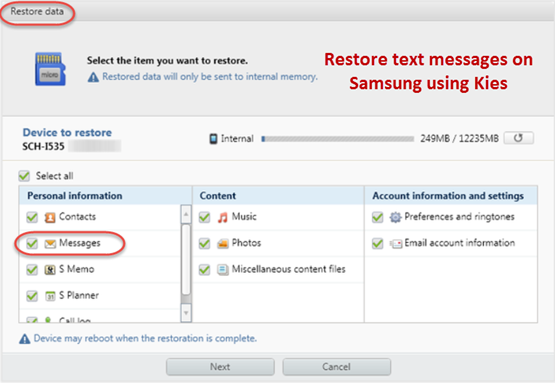
- Start Kies and enter the "Back up/Restore" tab on the top and click "Restore data" on the left.
- Select backup file which you want to restore text messages from the
drop-down box. If you cannot find the file, scroll to the bottom, click
"Find file".
- Mark "Messages" you need to restore from backup file, and hit "Restore". Then, click "Complete" when the restore is finished.
Note:
Text messages in the backup file will be restored using kies. In the
meantime, your new messages added after backing up are gone when syncing
with kies.
Option 2. Backup and Restore Text Messages with Android Data Recovery
If
by any chance that you didn't back up before you lost text messages,
and you didn't find all your precious text by using kies, I recommend a
very useful tool: Yolisoft Android Data Recovery
to you. It is specially designed to recover data from Android phones,
including Samsung S3/S3 mini/S4/S5/S5 mini/S6/S6 edge/S7/S7 edge/S8/S8 plus/Note series etc. and HTC, LG,
Sony Motorola mobiles. You can not only backup and restore text
messages but transfer and retrieve lost data like contacts, call log,
photos, videos etc. on Samsung.
- Get a Android Data Recovery program. Simply download and install it on your computer.
- Connect your Samsung device to computer via an USB cable. You'd
better connect one Samsung device at a time and keep it connected until
the recovery process finishes.
- Enable USB debugging on your Samsung (optional). If you already enabled USB debugging, just disregard this step.
- Analyze and scan data on Samsung device. When the new window shows
"Ready to Scan" after you enabled USB debugging, click "Start" to scan
data. (Keep an eye on your Samsung device, you may get a pop-up message,
just click "OK" to allow USB debugging.)
- Backup and restore data on Samsung. All data found on your Samsung
will be listed in the result. You can preview both the existing and
deleted messages, select existing messages you want to backup and
transfer, click "Recover" to save them on computer. Meanwhile, you can
mark "Messaging" and hit "Recover" button to restore deleted text
messages.

Note:
You need to know that once you added new data after the text messages
lost, the deleted SMS will be probably overwritten by new content, which
makes deleted text messages unrecoverable.
Related Articles: