Samsung official released the Limited Edition Iron Man Galaxy S6 edge on May 26. Yesterday , 1600 Iron Man Galaxy S6 Edge on sale for domestic users on Jingdong Mall (a popular Chinese Mall you may have heard about it). JD offers four approaches to get iron man s6 edge: 1 yuan panic buying, original price spike , limited auction , open to buy.
It is worth mentioning that all the Iron Man Edition Galaxy S6 edge has a globally unique number. An Iron Man Edition Galaxy S6 edge with code "66" was taken away in the high price of 568788 yuan at the end of the auction by a user named "**** ziaf".
For poor me, it’s hard to imagine that. May be , a collection significance is far higher than the value of the product .
- Translate from Chinese news
According to androidauthority, the iron man edition galaxy s6 edge itself is in short supply, with only a 1000 to be made available. If you love the look of this red and gold version though, there is luckily a rather simple and more cost-effective solution available to you, courtesy of SlickWraps.
Compared with the regular version of the S6 edge, the iron man version comes with amazing iron man design elements. The dazzling red and gold color makes it unique. The wireless charging plate is designed in the same iron man theme and that looks like an arc reactor.
Learn more topics about Samsung Galaxy S6/S6 Edge:
It is wise to backup Samsung regularly to manage the important data stored on your Samsung device. In that way, you will not lose data if you are updating phone or freeing up phone storage. Besides, backup plays very important role when you accidentally lost data on your Samsung due to whatever reasons. Well, this topic is what I am going to talk today: BACK SAMSUNG - 4 Ways to Backup & Restore Samsung Devices.
Manually Backup & Restore Samsung Data
It is easy to backup Samsung manually. Check it out:
Backup Samsung contacts: On Samsung, go to app drawer, click “Contacts” icon -> click “Menu” icon-> select “Settings” -> “Contacts”, select “Import/Export”, then you can backup the contacts to your USB storage or SIM card, which is at your choice.
Backup Samsung text messages: Go to text messages, enter the message you need to backup, click “Menu” icon on the right up corner-> choose “save messages”, then mark the messages you need, or mark “Select all”-> click “Save”. That’s it.
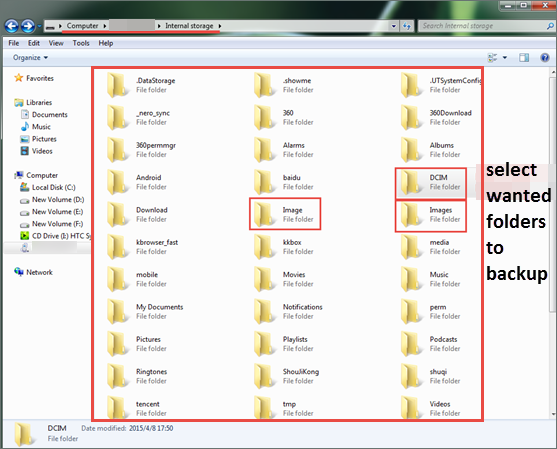
Backup Samsung media files: You can simply connect your Samsung to computer, and on the “My Computer”, find your Samsung device drive and enter it. Copy any files you want to backup, like videos, musics, text files and more, then paste them on your computer.
Backup Samsung by Google Account
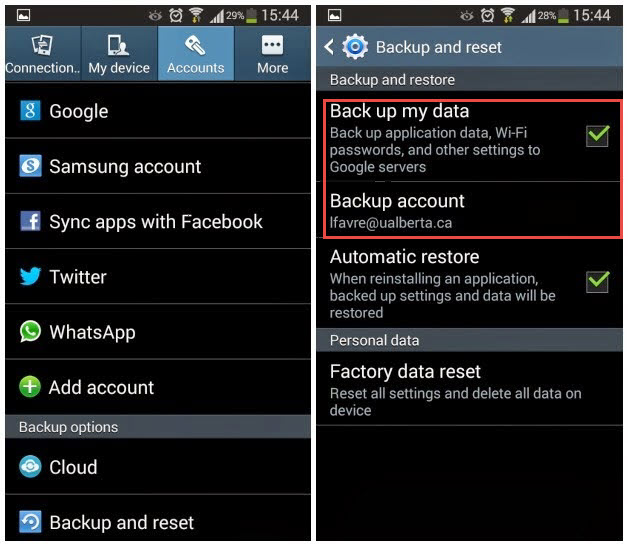
Thankfully Google has made Android Os in such a way that if you have linked your Android Samsung phone to your Gmail, your contacts and other files are most likely already synced with your Gmail.
Backup Samsung App settings: Go to “Settings”->scroll to ”Backup and Reset” -> Select “Back up my data”, then the apps settings, wifi passwords, and other settings are backed up to Google.
Samsung contacts backup: On Home screen, go to ->Menu button > Settings > Accounts & Sync. Touch your Google account to display the Data & synchronization screen. To sync your Email, Calendar or Contacts, touch the setting to enable synchronization, a check mark appears in the check box. Tap button Menu > Sync now.
Samsung multimedia backup: Google drive will be used in this case. You may have free storage of Google drive, simple log in to Google drive and upload the wanted media files (photos, videos, audios, etc.)
Backup Samsung Using Samsung Kies
You can back up the following content from your device: Contacts, S Note™, Message, S Planner (calendar events), Call log, S Health™, files stored on internal memory (videos, musics, photos, apps), Miscellaneous content files (internal memory), Ringtone, Story Album, Alarm, Email account information, and Preferences.
- Plug Samsung device into your computer.
- Open Kies 3 and click the Back up/Restore tab.
- Tap “Data backup” button.
- Mark files you want to back up. Simply select all content by marking the checkbox next to Select all items. Then click “Backup”.
- After the backup is done, click “Complete”.
Backup Samsung with Phone Data Transfer
Phone Data Transfer is a one-stop solution to backup and restore data from Samsung android device on PC/Mac. It is a good way to transfer, backup, recover data including photos, musics, apps, text messages, call history, contacts from any Samsung devices( Samsung galaxy s3/S4/S5/S6/S7/S8/Note 2/Note 3/Note 4/Note 5/Note 7 etc.)
- Run Phone Data Transfer program.
- Connect Samsung to computer.
- Hit “Back up Your Phone” on the left panel and let the program detecting Samsung.
- When android manager recognize the device, mark the wanted content and click “Start Transfer”.
Related Articles:
Why Do a Factory Reset on Samsung Galaxy?
* Factory reset Samsung Galaxy for the better performance. If your Galaxy S4/S5/S6/S7/S8 is very laggy, glitchy, and not working probably, you can perform a hard reset to fix these issues.
* Before you selling your old Samsung galaxy, factory reset is necessary to protect your private info, as factory reset will erases all of the data on your galaxy s and reverts it back to the way ti was when you first got it.
* Contrary to the last reason, when you get a second hand galaxy phone, you may want to factory reset the phone and move other people’s files.
* Unlock the forgotten account password. When factory reset your galaxy s3/s4/s5/S6/S7/S8 etc. The screen password and Google Gamil account password will be removed.
Keep Attention When Factory Reset Samsung Galaxy
* According to a report, 500 million Android devices(over 70% Samsung devices) at risk: Researchers find that factory reset doesn’t completely wipe data. To absolutely delete the data, you can use a freeware Eraser to do the job.
* Factory reset will wipe data on the internal memory of the device, which means the custom settings, application apps, contacts, messages, photos and other files on internal memory will be deleted. Thus, make sure that you have backed up these data beforehand. You can sync with your Gmail account or backup files with apps like Android manager. Didn’t back up? It’s OK, I guess you have to get help from 3-rd party Samsung Data Recovery tool if you want to restore them.

Two Ways to Factory Reset Galaxy S
1. Factory Reset a Working Galaxy S4/S5 Using Setting Menus
The easiest way to factory galaxy s is using its setting menus. This way only works for working device.
* On your Galaxy, click Menu button.
* Clicking “Setting/Privacy”
* Tap “Backup and Reset” button listed under User and Backup
* Select “Factory data reset”or "Backup & reset" etc. something like that.
That’s it, your galaxy s is factory reset.
2. Factory Reset Samsung Galaxy S4/S5 with Hardware Buttons
If your phone is frozen or the display won't wake up or you've broken your screen, maybe it is stuck in a bootloop, in theses case, you have to perform a reset by using the physical buttons.
* Power off your Samsung Galaxy S. For frozen device, you have to pull the battery out.
* Hold and press key combo: Volume up button + Home button + Power button.
* Release the power button until the device vibrates, but keep pressing the two other.
* Let all the buttons go when you see Android System Recovery screen.
* Use Volume down to navigate the wipe data/factory reset option and press the Power button to select it.
* Navigate with volume down button to ''yes delete user data'' Press power button again to confirm.
* Wait a few seconds, the device will be reset. After it is done, reboot system now should be highlighted and simple press power button to reboot your device.
* When the Samsung galaxy restarts it should be completely wiped and ready to set up again.
Related Articles:
Samsung Galaxy S5 Camera Failed Error:
The Samsung galaxy s5 has fantastic camera, but many Galaxy s5 users encountered “Camera failed ” issue. The error, simply described as “Warning: Camera Failed” freezes the camera application and the Galaxy s5’s Camera is not accessible.
Solutions to Fix Galaxy S5 Camera Failed:
Solution 1. Restart the Samsung Galaxy S5. Press and hold the power button + home button for several seconds until the galaxy s5 turn off/ vibrates. When reboot s5, and try it again. Reboot s5 can get the job done right in most cases, but if it doesn’t work, then move to the next way.
Solution 2. Disables all 3rd party apps temporarily. Boot your Galaxy S5 into Safe mode. If the camera works in Safe mode, then definitely it’s an app that you have installed on your phone is causing this problem. For example, flashlight apps may cause this problem.
Way to boot s5 into safe mode:
Turn off your phone.
Holding the power button.
Keep pressing the menu key (Left of the home button)
Solution 3. Clear Data & Clear Cache. Go to Settings -> Application manager-> Camera App -> Force Stop, then press Cache button. After that, back to camera to check if it was able to solve the problem.
Solution 4. Clear the Cache Partition. Booting into Recovery Mode and wiping the cache partition, which won't erase any personal data. To do that power off your s5 press the Power, Home and Volume Up buttons at the same time, release the buttons when you see Android system recovery screen appears. Select “Wipe Cache Partition” option, then go with the option of “Reboot System Now”. After it is done, check if the problem is solved
Solution 5. Remove SD Card. In case that the solutions mentioned above fails, If your photos are stored on Micro SD card, try to remove your Micro SD card to see if this is the thing that is causing camera failed problem on Samsung Galaxy S5.
Solution 6. Factory Reset Galaxy S5. Factory reset is the all purpose way to solve phone software problem. You can simply go to settings menu and choose Backup and reset listed under User and Backup and choose Factory data reset. This may solve your problem in the best possible manner. But this could be considered as the last resort. Before doing this, make sure your important data be backed up, as this will cause data loss. Don’t worry if you forgot to make a backup, Samsung Photo Recovery is a good tool to help you recover lost data.
Notes & Tips:
* The camera failed error on Samsung galaxy devices(including galaxy s4,S3,S2 etc.) can be solved by the above ways. If you have future problems of Samsung galaxy camera error, don’t hesitate to leave your comment below.
* If nothing of the above steps work to fix camera failed problem on Samsung galaxy s5, your camera must be faulty and you need to get it repaired.
Related Articles:
Samsung Kies, a free application which gives you full control over the content stored on Samsung. It allows you connect your Samsung devices to your computer, as well as backup and restore files on Samsung. Well, Samsung Kies can do far more than that, read on this article to learn the detailed information about Samsung galaxy Kies.
Connect Samsung Device to Computer Wirelessly
Using a compatible USB cable to make the connection is kind of troublesome for some people, especially when they encountered USB driver issues. Fortunately, Samsung Kies can help you get around this. With it, you can wirelessly connect Samsung to your computer with Wi-Fi connection. But, you should note that some functions of the Samsung will be limited and not all Samsung devices are supported.

Backup & Restore All Data from Your Samsung
With Samsung Kies, you can create backup of content on your device and restore your Samsung data easily and quickly. It supports backing up and restore various files from your device, including contacts, S note, messages, call logs, S health, S planner(calendar events), videos, musics, photos, ringtone, album, apps, alarm, email account info and more documents stored on Samsung internal memory. Thus, you needn’t to worry about the data loss. If you don’t have Kies backups, Yolisoft Android data recovery tool is a good alternative to recover data from Samsung.
Sync Contacts with Outlook, Google or Yahoo
Samsung Kies offers the easiest way to import email contacts onto your Samsung device and back them up. The supported email applications including Outlook, Gmail, and Yahoo. Besides, it can add as well as edit contacts directly in Kies.
Transfer & Manage Photos, Videos, Musics on Computer
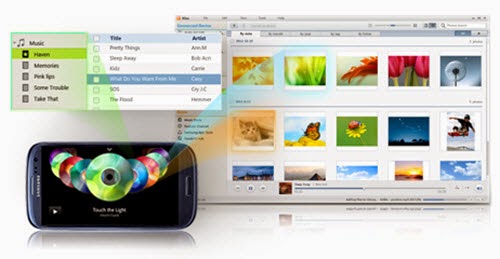
Kies can help you effortlessly manage your Samsung musics, photos, and videos and other multimedia content on your computer. You can simply connect your Samsung to any wireless network and let Kies to Sync the photos, videos, musics. In addition, you can even create playlists in Kies and the playlists can be transferred between different devices and platforms including iTunes.
Samsung Kies Versions:
Samsung Kies is available for both PC and Mac computer. For Mac users, Kies 3 is the only choice. For Windows users, you should first decide the version of Android running on your Samsung device. Kies 3 is compatible with devices running Android 4.3. If your Samsung is running older version of Android, Kies 2.6 is the right one.
Tips & Tricks:
- If you want to get the full functions of Samsung Kies, make sure it is the latest version and download it on Samsung official website.
- For windows users who connecting Kies to PC via USB cable, you should have Samsung driver installed, so that the Samsung device can be detected.
- If you encountered issues when installing the Kies, you can try Samsung Manager to manage data on your Samsung.
Related Articles:
If you want to truly clean up your curvy new Samsung Galaxy S6/S6 edge, you might need to root your S6/S6 edge with the normal android rooting tools. So that you can gain administrative rights on your device, and thoroughly remove the bloatware from your phone, which is also a great way to free up the RAM and storage memory. The advantages of rooting Samsung S6/S6 edge are far more than that. If a custom recovery exists for your Samsung, you can even flash newer versions of Android, remove TouchWiz entirely, and more.
It is possible to Root Galaxy S6/S6 Edge
With Samsung’s in-house
Exynos processor and Knox protection, rooting s6 is not that easy at the
beginning. Though, it’s been possible to root Samsung S6 and galaxy s6
edge since they are available a month ago. The first method to root
Samsung S6 would trip Samsung’s flash counter and let’s the technicians
check if the phone has been modified. In the other words, your warranty
would be voided. Fortunately, Pingpong Root will let you root Samsung
galaxy S6 and galaxy S6 edge without tripping KNOX.
About Pingpong Root
PingPong Root is developed by a XDA Member idler1984 who are working at a professional Chinese team named Keen Team. The new method to root Samsung s6/S6 edge doesn’t require Odin to flash a custom recovery and will not trip KNOX warranty bit. This tool is in the initial beta phase, but supports a broad variety of ROM variants. According to the XDA thread, they have 50+ ROM versions supported. The process is fairly straightforward, requiring you to download a single app and click a button in it, following which, the tool proceeds to complete the process automatically.

Steps to Root Samsung Galaxy S6/S6 edge
1. Uninstall Kinguser(optional). If you have Kinguser installed before, open it and navigate to “Settings” -> “Root authorization setting” -> “Remove Root permission”. Click to remove root permission and unintall Kinguser.
2. Download PingPong root<ver>.apk on XDA thread. Install & open it.
3. It will automatically install SuperSU 2.46 for you. Follow the wizard on screen.
4. Once the installation finished, click “Open" and run it once to "activate" it. It will prompt an error message (unless you already rooted) and exit automatically, bring you back to PingPong root.
5. Tap "Download Data" button to update device data if you have wi-fi connection.
6. Open it and click "Get Root!" button
7. You will get the prompted messages app permissions, allow them and continue. If it reboots, just retry.
8. Once finished, reboot your Samsung S6/S6 edge.
Notes:
1.Backup anything you are worried about losing before rooting your S6/S6 edge.
2.Disable the secure features: Samsung KNOX and Samsung Pay.
3.If it cannot support your ROM, you can follow the XAD thread to wait the newest version.
4.You can uninstall PingPong root app once the rooting process finished.
Related Articles:
You may have received your new Samsung Galaxy S6/S6 edge already. Cannot wait to feel the Samsung flagship? Before you get the great smartphone, you must have read info about Samsung Galaxy S6( if not, you can check the article “Samsung Galaxy S6 is Coming, Are You Ready? ”I guess you have noticed its unique feature that the phone will light up when messages and calls received. Well, that’s the main topic we are gonna to discuss today.
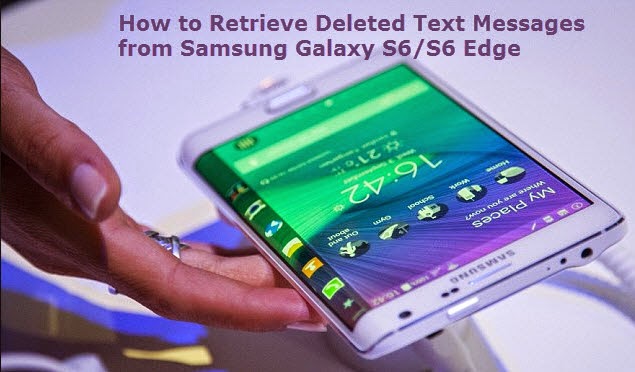
Many Samsung users have encountered the problem of deleting important text messages accidentally, and most of them don’t have available backup messages. The Samsung Galaxy S6/S6 edge users are no exception. Thus, when you are enjoying the great function of Galaxy S6, please take care of your precious data, like the text messages. If you are the one who lost text messages from Galaxy S6/S6 edge without backup, you have came to the right place. Here I conclude a feasible solution for you. Simply use a Samsung s6 recovery tool to help you get through this problem.


About Samsung S6 Recovery:
A powerful galaxy S6 text message recovery tool highly recommended here is Yolisoft Android Data Recovery. Compared to the other Samsung recovery tools, this tool has several apparent advantages:
1.Fast Scanning Process. Many tools don’t offer the option to individually select file type to scan, which takes unnecessary scanning time.
2.More Data can be recovered. This tool can recover all the text messages which not be overwritten by new content.
3.Very Simple to Use. It enables you get back deleted text messages from S6/S6 edge with a few clicks.
4.Powerful Enough. If you are going to find articles talking about recover photos, contacts, call logs, whatsapp chats, videos, photos, don’t pass by, this galaxy s6 recovery can as well as recover many files from galaxy S6/S6 edge. Why not give it a try.
5.Absolutely Green & Clean. No writing operation, read-only.
Before we get started:
The first thing you should do is leaving your phone alone once you noticed the text messages deleted/lost. Text messages deleted/lost doesn’t mean the data disappear forever, it just free up the space for the new content. As long as no writing operation on your phone, the deleted text is able to be retrieved.
Backup your current text messages on Galaxy S6/s6 edge. You’d better keep the habit that regular backing up data for your Samsung phone. In this digital world, it is easy to lost data, a simple wrong deletion, virus, update etc. will cause the data loss.
How to retrieve deleted text messages from Galaxy S6/S6 edges with Android data recovery:
1.Get Android data recovery(android recovery mac).
2.Run the tool and select “Messaging” to continue.
3.Set enable USB Debugging.
4.Scan text messages on Galaxy S6/S6 edge by clicking “Start”.
5.Preview and retrieve deleted text messages from s6 selectively.
6.Export and print text messages out.(optional)
Related Articles:


